
Quick capture
The quick box is the part of Flashjot you use most. It is built for one thing: getting a thought out of your head in a few seconds without leaving what you are doing.
Capture a thought
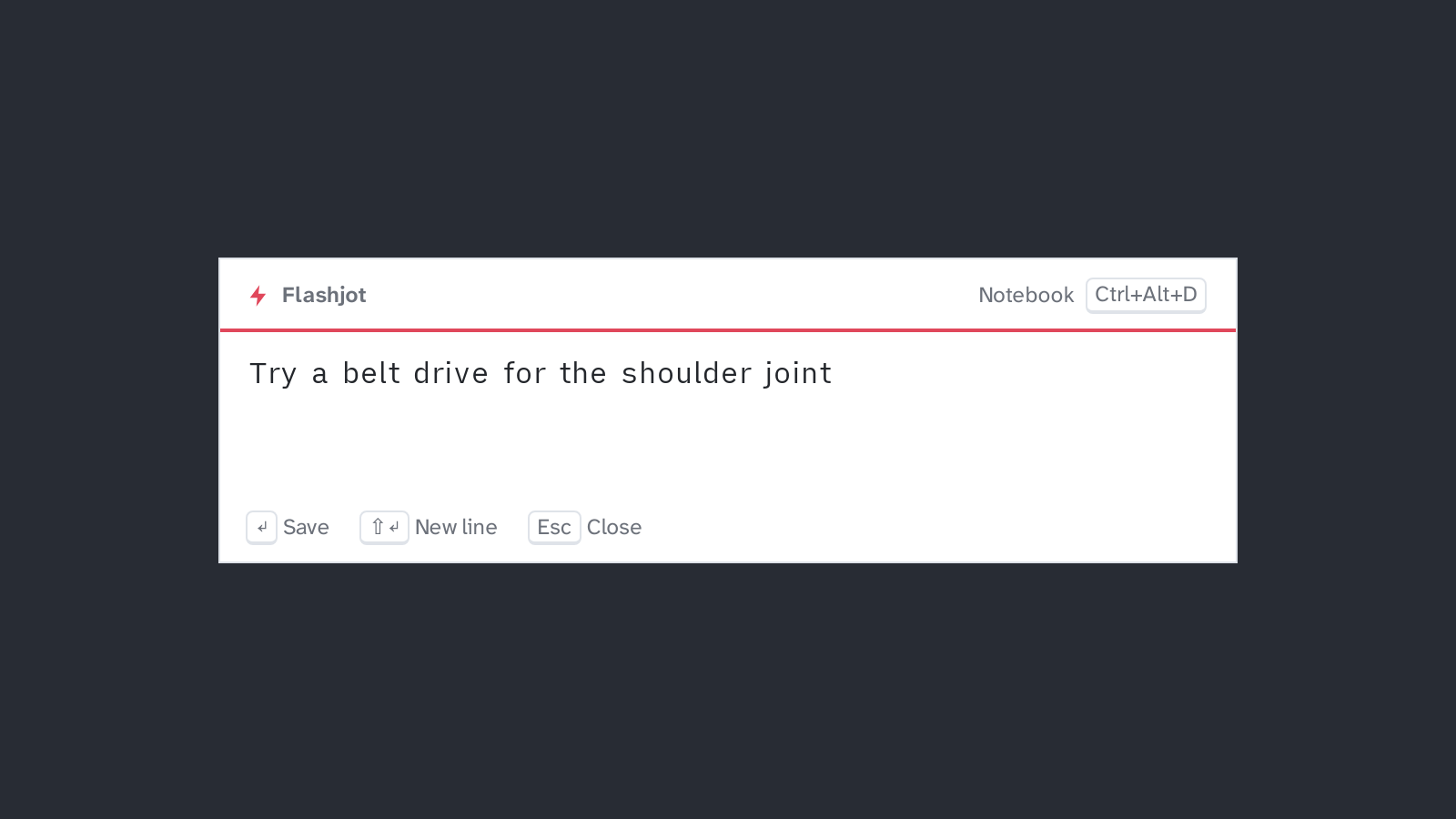
Section titled “Capture a thought”- Press Ctrl+Alt+N (⌘+⌥+N on macOS) from any app. The box opens in the upper third of the monitor your mouse is on, and the cursor is already in the text field.
- Type. Shift+Enter starts a new line if the thought needs more than one.
- Press Enter. The red line turns green, Saved to Inbox shows for a moment, and the box closes.
The note is now a file in the Inbox folder of your notes, named after the time you saved it,
for example Inbox/2026-10-19-143205.md. It shows up in the notebook’s
Inbox straight away.
Close without saving
Section titled “Close without saving”Press Esc, press the shortcut again, or click outside the box. It closes, but your text stays: the next time you open the box, the draft is still there, even after a restart. To throw a draft away, select it and delete it.
An empty box never creates a note.
If saving fails
Section titled “If saving fails”If the note can’t be written, for example because the notes folder is on a disconnected drive, the box stays open, shows Could not save. Your text is still here. and keeps your text. Fix the folder in Settings and press Enter again.
Jump to the notebook
Section titled “Jump to the notebook”The Notebook button at the top right of the box, or Ctrl+Alt+D, opens the notebook.
Shortcut doesn’t work?
Section titled “Shortcut doesn’t work?”- Another app uses the same keys. Pick another combination in Settings. Flashjot tells you there if a shortcut could not be registered.
- Linux on Wayland. Wayland doesn’t let apps register global shortcuts yet. Bind the command
flashjot --quickto a key in your desktop’s keyboard settings; see Linux. - Flashjot isn’t running. Start it once from the app menu. It keeps running in the tray, and with Start Flashjot when I log in on, it starts by itself.