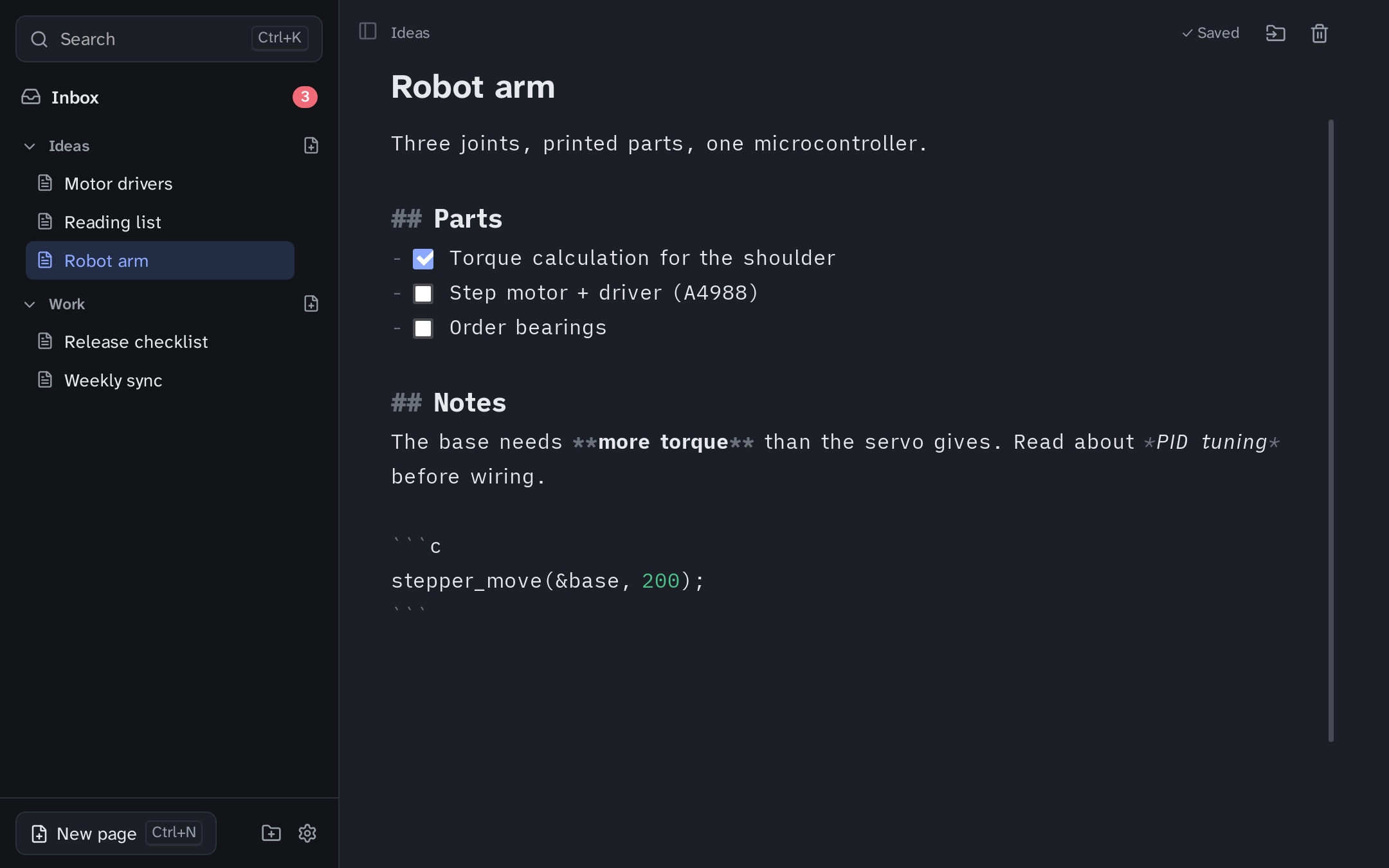
Notebook
The notebook is where your notes live once you have time for them. Open it with Ctrl+Alt+D (⌘+⌥+D on macOS), from the tray menu, or by starting Flashjot from the app menu. Closing the window only hides it; Flashjot keeps running in the tray.
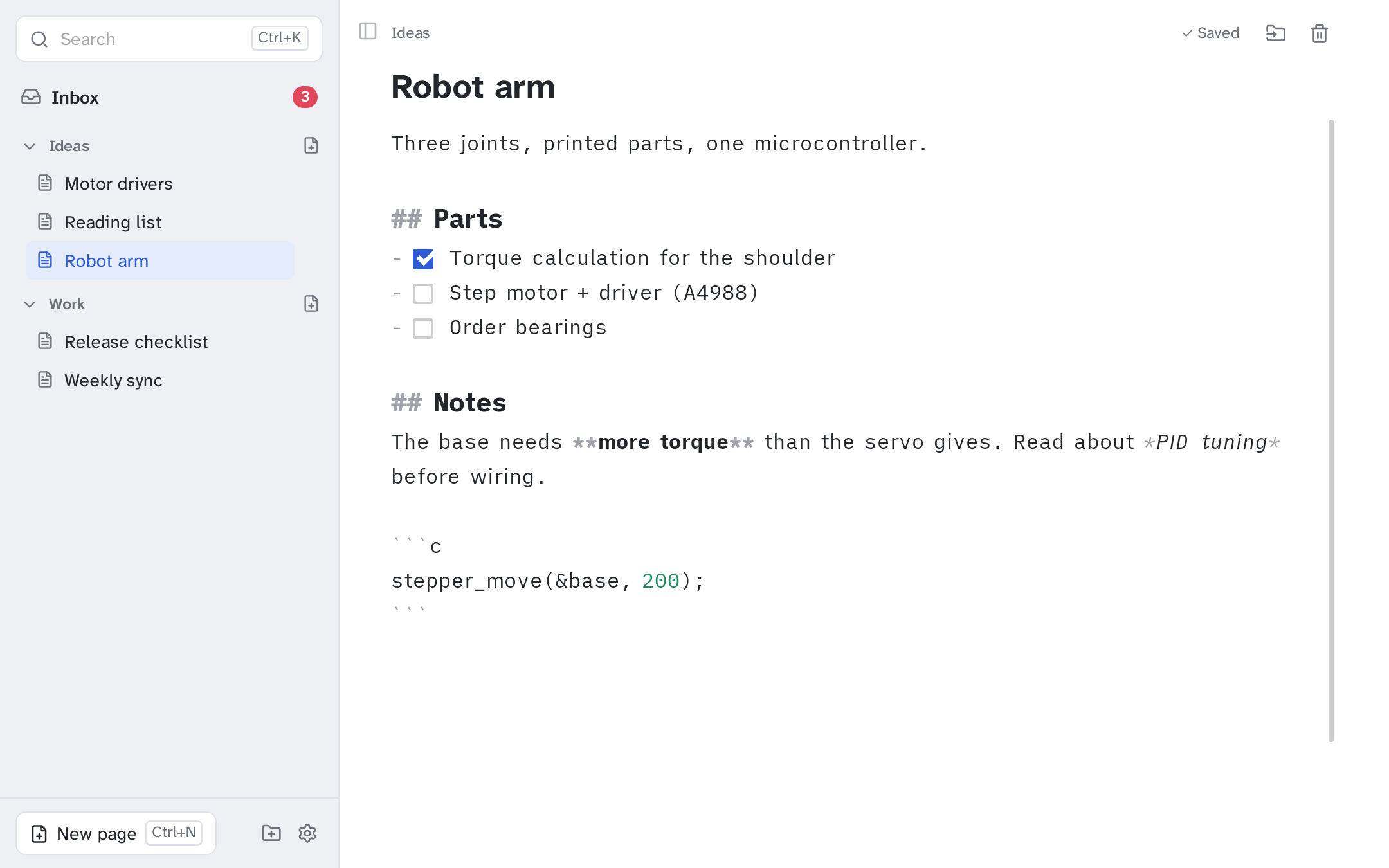
The Inbox
Section titled “The Inbox”Every note you save from the quick box lands in the Inbox, newest first. The red number in the sidebar shows how many are waiting. Each note is a card with the time you wrote it.
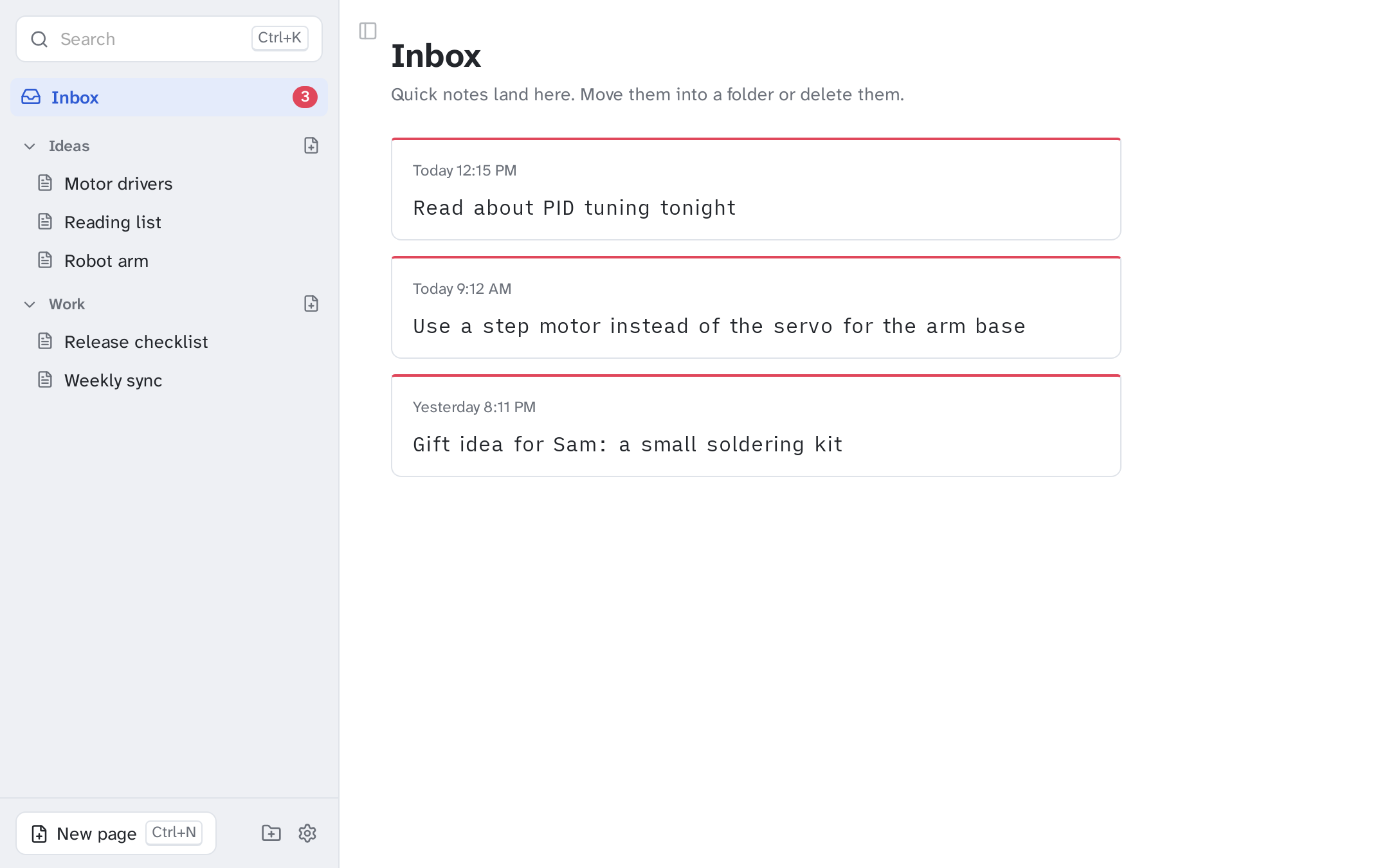
Click a card, or move between cards with ↑ and ↓, then:
| Key | What it does |
|---|---|
| Enter | Open the note in the editor |
| M | Move it to a folder |
| Del | Delete it (you can undo) |
The same actions appear as buttons when you hover over a card.
Move a note into a folder
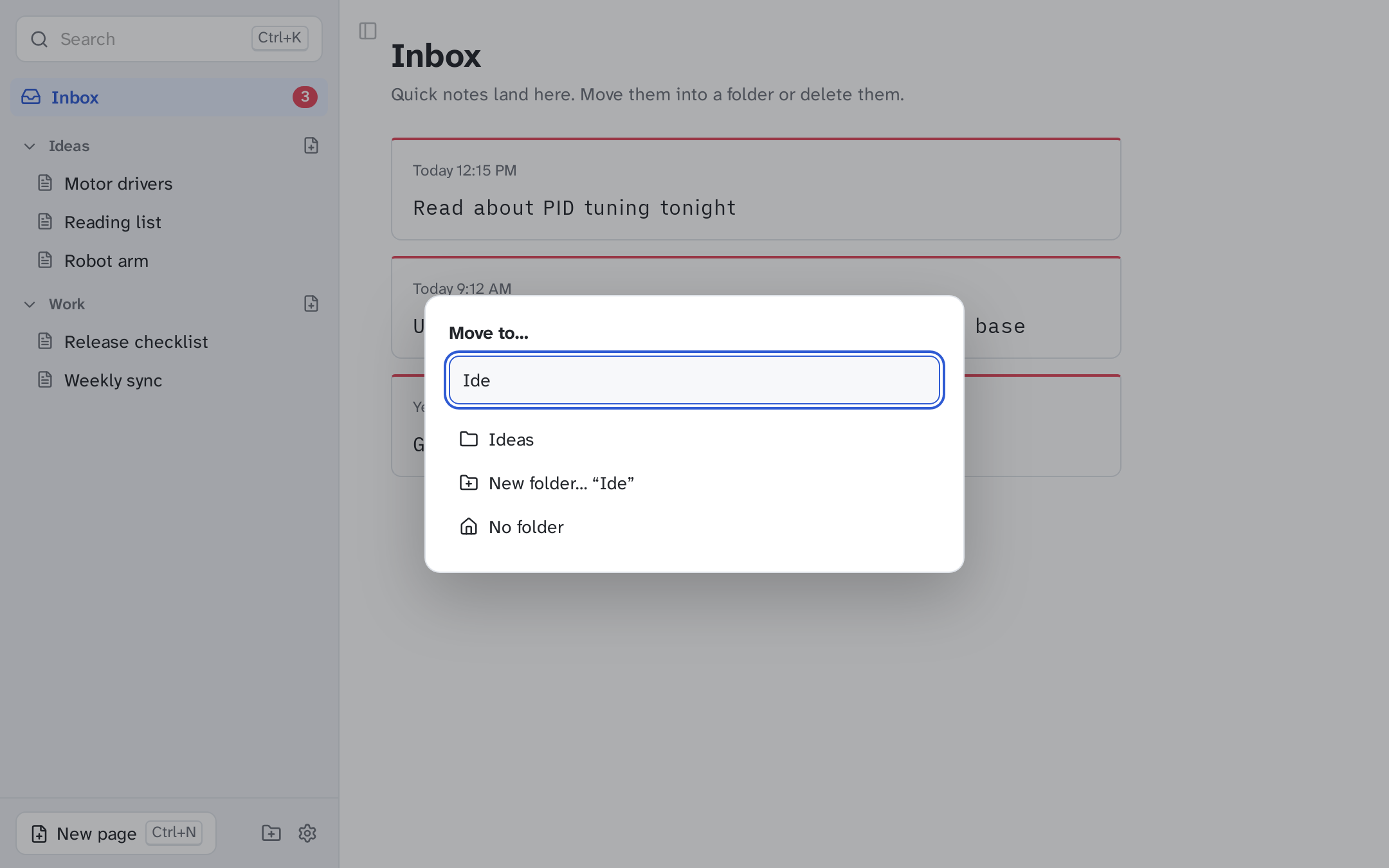
Section titled “Move a note into a folder”Press M or select Move to…. Start typing a folder name to filter the list, then press Enter or click a folder. If no folder matches, New folder… creates it. No folder puts the note at the top level.
A quick note that leaves the Inbox gets a readable name from its first line. “Try a belt drive for
the shoulder joint” becomes Ideas/Try a belt drive for the shoulder joint.md, and Markdown marks
such as # or - [ ] at the start are dropped.
Pages and folders
Section titled “Pages and folders”- New page: Ctrl+N, the New page button, or the page icon next to a folder. The page is created next to the one you have open, with the title selected so you can type over it. Press Enter to jump into the body.
- Rename: click the title at the top of the page and type. The file is renamed when you press Enter or click away.
- New folder: the folder icon at the bottom of the sidebar.
- Move: the folder icon at the top right of a page, or Ctrl+M.
- Delete: the bin icon on a page or next to it in the sidebar, or Del on a
selected page. Deleted notes go to a
.trashfolder, and Undo in the message at the bottom brings them back.
Writing
Section titled “Writing”Pages are Markdown. You see the Markdown as you type it, and it is styled as you go:
| You type | You get |
|---|---|
# Heading, ## Heading |
Larger, bold headings |
**bold**, *italic* |
Bold and italic text |
- item |
A list; Enter continues it |
- [ ] task |
A checkbox you can click; it becomes - [x] |
`code` and ``` blocks |
Code, with syntax colours for common languages |
There is no save button. Changes are written to disk half a second after you stop typing, when you switch pages, and when the window loses focus. The top right of the page shows Saved or Saving….
Search
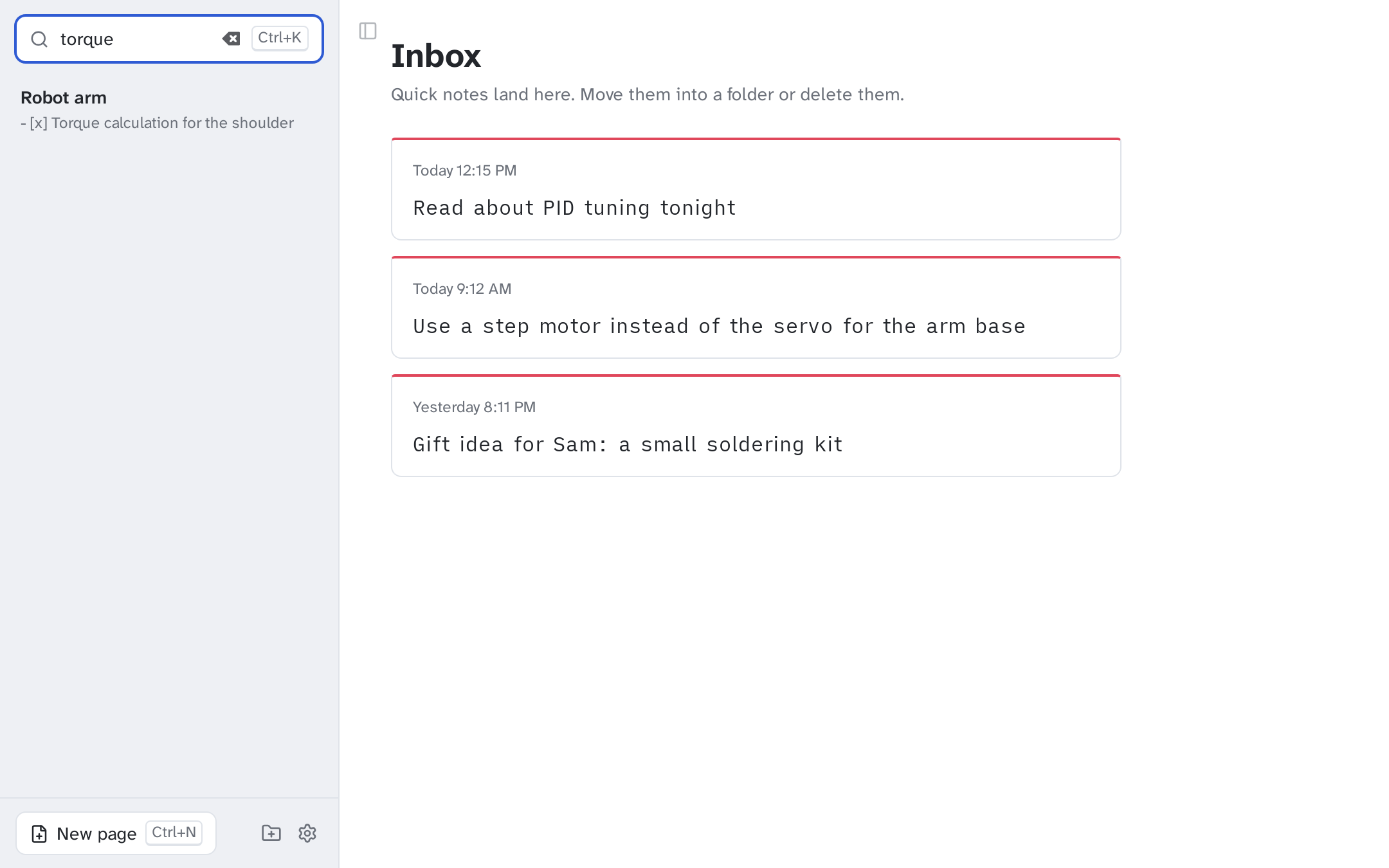
Section titled “Search”Press Ctrl+K and type. Results replace the folder list while you type and match both titles and text, including notes still in the Inbox. Enter opens the first result, ↓ moves into the list, and Esc clears the search.
Light and dark
Section titled “Light and dark”The notebook follows your system’s light or dark setting.